Cleartype Windows 10 komplett abschalten

Konsum

Cadet 2nd Year
Registriert
Dez. 2010
Beiträge
21
Hallo Freunde,

seit WIN8 bzw. dem IE9 regt es mich tierisch auf, dass die Schriftarten in Windows geglättet (Cleartype) werden.

Ich suche händeringend nach einer Möglichkeit, dieses Cleartype systemweit abzuschalten. Nein, ich möchte keine Anpassung der Kantenglättung, schon versucht, sieht nur weniger bescheiden aus, bleibt aber bescheiden. Ich möchte es abschalten, auch für Systemanzeigen und im EDGE Browser.

Ich danke euch sehr,

Konsum
 
Darauf habe ich gewartet, mal den Tipp ausprobiert? Aha...geht nicht, gell. Das Problem ist, dass das Abschalten der Cleartypefunktion dort keinerlei Auswirkungen auf den IE oder diverse Systemfenster hat.
Man kann das auch in den Office Programmen abschalten, aber eben wieder nur mit Wirkung innerhalb der Programme.
 
Zuletzt bearbeitet:
  • Gefällt mir
Reaktionen: hebbel82
Ich mache schon es sehr lange über die Registry. Welche Werte für dich und dein System passend testen.

Enabling ClearType in Vista is easy, you can do it in the GUI, and besides its enabled by default anyway. However, tuning ClearType in Vista is not so easy as there is nothing exposed in the GUI for tuning. ClearType is integrated into Vista. There is, however, a way to adjust ClearType in the registry.

[HKEY_CURRENT_USER\Control Panel\Desktop]
"FontSmoothing"="2"
"FontSmoothingType"=dword:00000001
"FontSmoothingGamma"=dword:000003e8
"FontSmoothingOrientation"=dword:00000001


The "FontSmoothing", "FontSmoothingType", "FontSmoothingGamma", and "FontSmoothingOrientation" items already exist in the registry. The settings for each important item for ClearType activation and tuning are:

"FontSmoothing" - a DWORD value : 1 = use font smoothing, 2 = use ClearType font smoothing. This is a REG_SZ value, not a dword. This is different from "FontSmoothingType" and is not a switch to help turn on ClearType to begin with. This tells the font smoothing to use AFTER ClearType is enabled.

"FontSmoothingType" - a DWORD value: 1 = ClearType is not used for the font smoothing, standard font smoothing is used instead - 2 = ClearType is used for font smoothing. (setting to '2' also enables ClearType)

"FontSmoothingGamma" - a DWORD value: Perhaps the most important setting for ClearType. Range is 1000 to 2200 (integer). Setting to 1000 (the default) produces the most readable text for most people (its the darkest against a white background with a black font). 2200 gives the lighest text. You may be able to go below the 1000 value, I haven't tried that yet since the official lower limit is 1000.

"FontSmoothingOrientation" : This is a hard one to figure out. It seems basically to determine if the display will use RGB, BRG, or a flat pixel structure. Most LCD screens are RGB so play with this one a little if your using a LCD display. The values for this dword are 0, 1, or 2. These values for "FontSmoothingOrientation" and what each does is represented below:

Flat = 0 - The display device has no pixel structure. This means that light sources for each color are spread equally on the pixel area—this is referred to as gray scale rendering. This is how a standard display device works. ClearType is never applied to the rendered text.

RGB = 1 - The display device has pixels that consist of three stripes in the following order: red, green, and blue. ClearType is applied to the rendered text.

BGR = 2 - The display device has pixels that consist of three stripes in the following order: blue, green, and red. ClearType is applied to the rendered text.
 
Konsum schrieb:
Darauf habe ich gewartet, mal den Tipp ausprobiert? Aha...geht nicht, gell. Das Problem ist, dass das Abschalten der Cleartypefunktion dort keinerlei Auswirkungen auf den IE oder diverse Systemfenster hat.

dass du den Tipp bereits getestet hast, kann ich hier von dir auch nirgends lesen, wie wäre es also, wenn du etwas zurückruderst (ist ja wohl verständlich, dass du das offensichtliche gepostet bekommst, wenn du nicht schreibst, dass du dies bereits probiert hast) schließlich hilft man unfreundlichen Leuten auch seltener
 
Balleny schrieb:
Zitat entfernt - Bitte Regeln beachten!

Ich sag nur "3 Sekunden 'Google"...nicht etwa "Hallo..."
Ergänzung ()

Hallo AdoK,

vielen dank für deinen Hinweis. Die wichtigste Einstellung ist wahrscheinlich FontSmoothingType"=dword:00000001.
Mit dem Entfernen des Häkchen "Cleartype" bei den Anzeigeeinstellungen wurde dieser Wert der Registry schon automatisch auf 1 gesetzt. Leider hat mir das nicht weitergeholfen, aber danke für deine Bemühungen.

Viele Grüße!

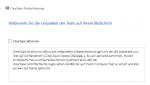
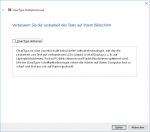
Konsum Unbenannt.PNG Ein Beispiel, wie es bei mir aussieht...leider ist die Bildinfo komprimiert, dadurch erscheint es etwas verwaschener...
 
Zuletzt bearbeitet: (Zitat entfernt)
Ich bin ein Leidensgenosse von "Konsum". Gibt es inzwischen weitere Erkenntnisse zum Abschalten Thema ClearType? Soweit ich es bisher bei allen Versuchen mit Win7, 8 und 10 gesehen habe, kann man ClearType nur abschwächen, bzw. ändern, aber nicht gänzlich abschalten.
Falls jemand weiß, wie man es ganz abschalten kann, wäre ich sehr dankbar für einen Tipp.
 
Hallo,

gibt es neue Erkenntnisse?

Bei meinem PC schaltet sich ClearType etwa 1 bis 2 Mal die Woche selbst ein, sehr nervig.

LG
Andrea
 
Könnte es sein, dass nicht cleartype das Problem ist sondern der alte Monitor?
 
  • Gefällt mir
Reaktionen: wuselsurfer und areiland
Hallo Andrea und willkommen im Forum,

deine Frage geht in in die Richtung XY Problem. Löse lieber das Problem, dass das Bild mit Cleartype nicht gut ausschaut als ClearType killen zu wollen.

Als XY-Problem wird eine Kommunikationssituation bezeichnet, in der ein Fragesteller, der mit Problem Y konfrontiert ist, dieses in der Anfrage nicht benennt, sondern sich lediglich nach einem damit zusammenhängenden Teilproblem X erkundigt, von dem er vermutet, dass es für Y wesentlich oder ursächlich ist.

Welchen Monitor besitzt du, wie schließt du ihn an (USB-C/Thunderbolt, HDMI, Displayport oder noch VGA), welche Auflösung nutzt du und ist diese Auflösung die native Auflösung des Monitors, nutzt du Bildschirmskalierung (125, 150%)?
 
Die Kette
Monitor ↔ Grafikkarte ↔ Grafiktreiber ↔ Windows
kann durchaus Dummheiten machen. Grafikkarte und Monitor missverstehen sich, das merkt der Treiber und gibt Änderungen oder Abschalten von ClearType ans Betriebssystem.

So etwas sollte ganz klar nicht passieren, aber bei diesem Gemenge ist es auch nicht so sehr ausgeschlossen.

CN8
Ergänzung ()

IDontWantAName schrieb:
Löse lieber das Problem, dass das Bild mit Cleartype nicht gut ausschaut als ClearType killen zu wollen.
Eine Vorschlag den ich nicht einfach so unterstützen kann.
ClearType wurde aus gutem Grunde erfunden. Und es ist WIN das es willkürlich deaktiviert, nicht der TE.

CN8
 
IDontWantAName schrieb:
Welchen Monitor besitzt du, wie schließt du ihn an (USB-C/Thunderbolt, HDMI, Displayport oder noch VGA), welche Auflösung nutzt du und ist diese Auflösung die native Auflösung des Monitors, nutzt du Bildschirmskalierung (125, 150%)?
Dell P3418HW, native 2560x1080 Pixel im PBP-Modus (Picture-by-Picture). Vom PC mit GeForce GT 1030 ist ein HDMI-HDMI-Kabel für die linke Bildhälfte. Und ein DP-HDMI-Kabel zu einem KVM-Switch, dort HDMI-HDMI zum Monitor für die rechte Bildhälfte. Der PC ist daher auf 2 Bildschirme mit jeweils 1280x1080 konfiguriert.

Schalte ich den KVM um, sehe ich in der rechten Bildhälfte meinen Zweit-PC. Dieser hat 1280x1080 eingestellt.

cumulonimbus8 schrieb:
ClearType wurde aus gutem Grunde erfunden. Und es ist WIN das es willkürlich deaktiviert, nicht der TE.
Genau. Aber umgekehrt, es geht willkürlich an. Ich merke das vor allem bei Exel, die Schrift wird dann richtig fett.

Hab jetzt mal BetterClearTypeTuner installiert. Mal sehen, ob das hilft.

LG
Andrea
 
Blurry or fuzzy text and graphics on a monitor with a GeForce GT 1030 are commonly caused by incorrect display settings, outdated or improperly installed drivers, or issues with the video cable. Here are the most effective fixes:

  • Check Display Resolution and Scaling: Ensure your monitor is set to its native resolution (e.g., 1920x1080). In Windows Settings > Display, set "Change the size of text, apps and other items" to 100%. Higher scaling (e.g., 125% or 150%) often causes blurriness, especially on HD monitors.
  • Update or Reinstall GPU Drivers: Use Display Driver Uninstaller (DDU) to completely remove existing NVIDIA drivers, then reinstall the latest drivers directly from the NVIDIA website. This resolves many driver-related rendering issues.
  • Verify Video Cable and Port: A low-quality or damaged VGA cable can cause blurry output, especially on older monitors. If using VGA, replace it with a thick, high-quality cable. If your monitor supports HDMI or DVI, use those instead for sharper image quality.
  • Adjust NVIDIA Control Panel Settings:
    • Right-click desktop > NVIDIA Control Panel > Display > Change resolution.
    • Ensure the resolution and refresh rate match your monitor’s specs.
    • For HDMI connections, try switching from HDMI - HDTV (Audio enabled) to HDMI - HDTV (Audio disabled) if text appears fuzzy.
  • Fix DPI Scaling Issues: Some apps or programs may render blurry text due to DPI scaling. Use Compatibility Settings or registry edits to force apps to run with proper scaling, or disable DPI scaling for specific applications.
  • Test for Overscan: If the image doesn’t fill the screen or appears cut off, adjust overscan settings in the NVIDIA Control Panel or monitor menu (often labeled "Screen Fit" or "Overscan").
If the issue persists, it may be related to ClearType text rendering—run the ClearType Text Tuner (search for "ClearType" in Windows) and select the clearest text sample. Some users have also reported fixes by disabling FXAA (Anti-Aliasing) in the NVIDIA Control Panel for specific applications.

For older systems, ensure Windows is fully updated—some blurry text issues were tied to specific updates (e.g., Windows 10 Creators Update).
Quelle: search.brave.com: "GeForce GT 1030 monitor bad font picture

also einmal versuchen, FXAA zu deaktivieren - eventuell hilft das ja

Kabel überprüfen hilft, etc. etc. - andere Kabel verwenden, kann auch teils am KVM Hub liegen

BetterClearTypeTuner, damit kann man aber auch so einiges verstellen, damit es dann wirklich schrecklich ausschaut :p
 
Hallo,

vielen Dank für die tollen Tipps. Sie gehen ein bisschen am Thema vorbei. Um es deutlich zu sagen:

Das Bild ist ganz hervorragend, solange ClearType ausgeschaltet ist.

Ich brauche nur eine Möglichkeit, ClearType dauerhaft auszuschalten.

Danke
Andrea
 
Disabling ClearType completely in Windows 10 is not fully achievable through standard settings, as some system components and modern apps (especially Universal Windows Platform apps) use their own rendering methods that bypass traditional ClearType settings.

Primary Methods to Reduce/Disable ClearType

  • Turn off ClearType via Control Panel:
    • Open Settings > System > Display > Advanced display settings > ClearType text.
    • Uncheck "Turn on ClearType" and follow the setup wizard to select the clearest text sample.
    • This disables ClearType for most legacy apps and system UI.
  • Use Registry to Disable Font Smoothing:
    • Press Win + R, type regedit, and navigate to:

      HKEY_CURRENT_USER\Control Panel\Desktop

    • Set FontSmoothing to 0 (zero).
    • Set FontSmoothingType to 1 (grayscale anti-aliasing).
    • This disables ClearType and applies basic anti-aliasing, but does not fully eliminate smoothing in all areas.

Advanced: Force Bitmap Fonts (Most Effective)

To achieve crisp, non-aliased fonts across most of the system:

  • Install the Korean Dotum or MS Sans Serif bitmap font via:
    • Settings > Apps > Optional features > Add a feature > Korean supplemental fonts.
  • Use this registry script to force Windows to use bitmap fonts instead of ClearType:

    Windows Registry Editor Version 5.00<br><br>[HKEY_CURRENT_USER\Control Panel\Desktop]<br>"FontSmoothing"="0"<br><br>[HKEY_LOCAL_MACHINE\SOFTWARE\Microsoft\Windows NT\CurrentVersion\Fonts]<br>"Segoe UI (TrueType)"=""<br>"Segoe UI Black (TrueType)"=""<br>"Segoe UI Bold (TrueType)"=""<br>"Segoe UI Italic (TrueType)"=""<br>"Segoe UI Light (TrueType)"=""<br>"Segoe UI Semibold (TrueType)"=""<br>"Segoe UI Symbol (TrueType)"=""<br><br>[HKEY_LOCAL_MACHINE\SOFTWARE\Microsoft\Windows NT\CurrentVersion\FontSubstitutes]<br>"Segoe UI"="Dotum"
    • Save as a .reg file, run it, and restart.
    • Note: This may cause minor visual quirks (e.g., path separators appearing as strange symbols), but results in sharp, non-blurry text.

Limitations

  • Modern UWP apps and system UI (Start menu, taskbar, system tray) cannot be fully disabled from using anti-aliasing.
  • Some third-party apps may ignore system font settings entirely.
  • No registry or tool can fully disable font smoothing in all contexts.
For the most consistent crisp text, combining registry changes with bitmap font substitution is the most effective workaround.
search.brave.com: "windows 10 completely disable cleartype font hinting"

  • Use Registry to Disable Font Smoothing:
    • Press Win + R, type regedit, and navigate to:

      HKEY_CURRENT_USER\Control Panel\Desktop

    • Set FontSmoothing to 0 (zero).
    • Set FontSmoothingType to 1 (grayscale anti-aliasing).
    • This disables ClearType and applies basic anti-aliasing, but does not fully eliminate smoothing in all areas.

wird dann wahrscheinlich das Gesuchte sein ?
 
  • Gefällt mir
Reaktionen: -Andrea-
Danke, jetzt klappt es. Zum Ziel kam ich auf verschlungenen Wegen:

Mit FontSmoothing 0 werden die Schriften zu "dünn."

Ich habe danach ClearType erst ein- und dann wieder ausgeschaltet. Man sollte meinen, dann ist es wie zuvor. Aber Windows ist komisch, denn FontSmoothing wechselte zu 2. Anscheinend ist ClearType mehr als nur die Einstellung FontSmoothing.

Solange FontSmoothing 2 ist und ClearType aus, sieht es gut aus. Mit ClearType werden die Schriften viel zu fett, ganz besonders in Excel.

Hoffentlich bleibt es jetzt so.

LG
Andrea

Edit 1: Computer\HKEY_CURRENT_USER\SOFTWARE\Microsoft\Avalon.Graphics\DISPLAY1\ClearTypeLevel

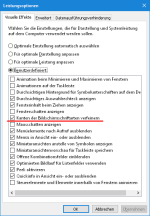
Edit 2: Siehe Screenshot, das dürfte FontSmoothing sein.

Wir können also festhalten, dass FontSmoothing und ClearType irgendwie dasselbe Ziel haben, aber unterschiedliche Einstellungen sind. ClearType dürfte neuer sein und viel mehr Optionen haben.
 

Anhänge

  • Zwischenablage_03-19-2026_01.png
    Zwischenablage_03-19-2026_01.png
    10,2 KB · Aufrufe: 25
Zuletzt bearbeitet:
Zurück
Oben